If you own an Anker SOLIX C1000 portable power station, you have probably received a notification on your phone that a new firmware update is available. Maybe it says version 1.5.4, or perhaps you are seeing something newer like firmware 1.5.9. Your first instinct might be to tap “update” immediately, eager to get the latest features and bug fixes. But wait. Before you do that, there are some critical things you need to know that could save you from a major headache, or worse, a complete power outage for all your connected devices.
I learned this the hard way, and after spending countless hours researching forums, reading through Anker’s support documentation, and experiencing the update process myself, I want to share everything I have discovered about Anker C1000 firmware updates. This is not just another generic guide. I am going to tell you what actually happens during these updates, why some people are furious about the process, and how to avoid the common pitfalls that can turn a simple software update into a frustrating ordeal.
Understanding What Firmware Updates Actually Do for Your C1000
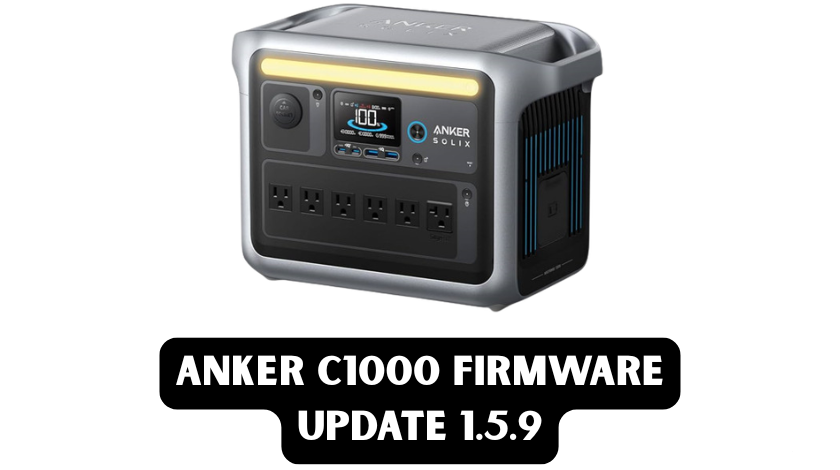
First, let us talk about what these firmware updates actually accomplish. The Anker SOLIX C1000 is essentially a computer with a massive battery attached. Inside that rugged orange-and-black case is a sophisticated battery management system (BMS) that controls everything from charging speeds and output protection to temperature monitoring and UPS functionality. Firmware is the software that runs this system, and just like your smartphone or laptop, it needs periodic updates to fix bugs, improve performance, and occasionally add new features.
When Anker releases a firmware update for the C1000, it is typically to address specific issues reported by users or to optimize how the power station handles certain tasks. For example, firmware version 1.5.4 was specifically released to optimize AC outlet performance and fix issues with the 12V car charging port. Users had been complaining that their devices would randomly shut off when plugged into the AC outlets, or that the smart socket feature was being overly aggressive in turning off power. The update was meant to address these frustrations.
However, firmware updates on power stations are fundamentally different from updating your phone. Your phone can restart without affecting anything else in your life. But the C1000 is a power source. When it updates its firmware, it has to completely shut down its power output. This means anything plugged into it, your refrigerator, your computer, your internet router, your security cameras, will all lose power instantly. And here is the kicker: Anker does not warn you about this before you start the update.
The Current State of C1000 Firmware: Versions and Features
As of my research, the most commonly discussed firmware version making the rounds is 1.5.4, which was released to address several nagging issues with the C1000. According to Anker’s official support documentation, this version specifically optimized the AC outlet performance. It improved the 12V car-charging function—users experiencing random shutdowns when powering devices under 20 watts found relief after this update.
Now, you might be specifically searching for information about firmware 1.5.9. While I have not found definitive release notes for version 1.5.9 in my research, Anker’s pattern suggests they are continuously refining the C1000’s software. The jump from 1.5.4 to 1.5.9 likely includes additional bug fixes, possibly addressing the BP1000 expansion battery recognition issues that many users have reported, or further refinements to the UPS functionality that has been problematic for some.
The firmware update process is supposed to be straightforward. Open the Anker Solix app on your phone, connect to your C1000 via Bluetooth or WiFi, and if an update is available, you will see a notification. The app downloads the update, transfers it to the power station, and then the C1000 installs it. The whole process is supposed to take between 7 and 10 minutes. But as many users have discovered, it does not always go that smoothly.
The Step-by-Step Update Process: What Should Happen
Let me walk you through how the update process is supposed to work, based on Anker’s official instructions and my own experience. First, ensure your C1000 is connected to AC power and charging. This is crucial because if the battery dies during the update, you could brick the device. Anker recommends having at least 5% battery, but honestly, I would not attempt an update unless you are at 50% or higher, just to be safe.
Next, you need a stable internet connection on your phone, and the C1000 must be connected to it via the Anker Solix app. The app requires you to create an account and log in, which has been a major point of contention for privacy-conscious users. More on that later. Once you are logged in and connected to your C1000, the app will automatically check for firmware updates.
If an update is available, you will see a prompt. When you initiate the update, the app should warn you that the process will take several minutes and that you should not interrupt it. Here is where Anker fails spectacularly: they do not adequately warn you that ALL power output will be cut during the update. If you are using your C1000 as a UPS (Uninterruptible Power Supply) to keep your internet router and computer running, they will all shut down the moment the update starts. I cannot stress enough how important it is to unplug any critical devices before starting this process.
The update itself happens in stages. First, the app downloads the firmware package to your phone. Then it transfers that package to the C1000 via Bluetooth or WiFi. Once transferred, the C1000 begins the installation process, which involves rewriting its internal software. The power station will be completely unresponsive during this time. The display might go dark, or it might show a progress indicator. You will not be able to turn it on or off, and no ports will provide power.
When Updates Go Wrong: The Dreaded 99% Problem
Now, let us talk about what happens when things do not go according to plan. The most common issue users report is the firmware update getting stuck at 99%. You watch the progress bar crawl up, reaching 98%, then 99%, and then… nothing. It sits there for minutes, sometimes hours, with no change. Your app shows it is still updating, but nothing is happening. This is perhaps the most frustrating experience because you are left wondering whether to wait longer, cancel the update, or try resetting the device.
According to Anker’s official troubleshooting guide, if your firmware update stops at 99%, there are several things to check. First, ensure your C1000 is still connected to AC power and actively charging. The update process is power-intensive, and if the device is not charging, it might refuse to complete the installation. Second, check your WiFi connection. The C1000 needs a stable internet connection throughout the update process, and if your WiFi drops or becomes unstable, the update can hang.
If the update remains stuck at 99% for more than 20 minutes, Anker recommends uploading the app logs and contacting their support team with your C1000’s serial number. To upload logs, you go to the Profile section in the app, select Settings, then choose Upload Log. This sends diagnostic information to Anker’s engineering team so they can see exactly where the process failed.
However, there is a catch-22 here that drives users crazy. If the update fails and your C1000 becomes unresponsive, you might not be able to connect to the app to upload those logs. In some cases, the only solution is to perform a factory reset using the device’s pinhole reset button, which restores it to its original software state. However, you might lose some settings in the process.
The Privacy and Security Concerns Nobody Talks About
Before we go deeper into troubleshooting, I need to address something that really bothers me and many other C1000 owners. Anker requires you to create an account and log in to their app to perform firmware updates. This is not just a minor inconvenience; it is a significant privacy and security concern that the company does not adequately address.
When you set up the app, you are forced to provide personal information and connect the C1000 to your home WiFi network. This means that Anker, a Chinese company, may have access to your WiFi credentials and can communicate with your power station remotely. For a device that is essentially a large battery, this level of data collection seems excessive. Some users have reported that after connecting their C1000 to WiFi, they cannot find an option in the app to forget the network or remove the device’s WiFi password.
From a security standpoint, this is troubling. If Anker’s servers are compromised or if vulnerabilities are found in their IoT infrastructure, your home network could be at risk. I understand that connected features like remote monitoring and firmware updates require internet connectivity, but forcing users to create accounts and store WiFi credentials on the device feels invasive. The C300, Anker’s smaller power station, does not require this account creation for firmware updates, which makes the C1000’s requirements even more puzzling and frustrating.
Critical Safety Warning: The Power Cut Nobody Warns You About
Now, let us get to the most important part of this guide, the thing that made me want to write this article in the first place. When you initiate a firmware update on the C1000, the device immediately cuts all power output. I am talking about a complete shutdown of every AC outlet, every USB port, and the 12V car socket. Everything goes dark instantly.
This is catastrophic if you are using the C1000 as a UPS. I read about one user who had their entire home network, router, WiFi access point, and Ethernet switch, plugged into the C1000. They initiated a firmware update, thinking it was a routine process, only for their entire internet connection to go down. Worse, because the router lost power, the C1000 could not complete the firmware download, as it needed an internet connection to finish the update. The update failed, leaving the power station unresponsive until a manual reset was performed.
Anker does not provide any warning in the app that this power cut will happen. There is no pop-up saying, “Warning: All connected devices will lose power during this update.” There is no recommendation to unplug critical equipment first. This is a massive oversight for a device marketed as a reliable UPS solution. If you are running a home office, medical equipment, or security systems from your C1000, you could experience significant disruption or even data loss.
My strong recommendation is to treat firmware updates like a major surgery for your power station. Only perform them when you can afford to have zero power output for 10 to 15 minutes. Unplug everything critical beforehand. If you are using the C1000 as a UPS for your computer, save all your work and shut down the computer completely before updating. Do not assume the battery backup will protect you during a firmware update because it will not.
BP1000 Expansion Battery Firmware Issues
If you have the BP1000 expansion battery connected to your C1000, firmware updates become even more complicated. Many users have reported that after updating their C1000 firmware, the expansion battery is no longer recognized by the app or the power station. This appears to be a compatibility issue where the firmware update changes how the C1000 communicates with the BP1000.
Anker’s support documentation acknowledges this issue and suggests ensuring your C1000 is fully charged to 100% before connecting the BP1000. The charging logic prioritizes charging the main unit before the expansion battery, which can confuse you if you are trying to charge both simultaneously. However, the firmware-specific recognition issues seem to require intervention from Anker’s support team.
If your BP1000 stops working after a firmware update, Anker recommends providing your C1000’s serial number and the email address used for the app account. Their product team can then push a specific firmware update to resolve the compatibility issue. This suggests that Anker can remotely trigger firmware updates or modify device settings through its cloud infrastructure, raising additional privacy questions but providing a solution for battery expansion problems.
Advanced Troubleshooting: When Nothing Else Works
Sometimes, despite your best efforts, the firmware update fails, leaving your C1000 unresponsive. Maybe the screen is blank, the app cannot connect, or the power buttons do nothing. In these situations, you need to perform a factory reset. This is not as scary as it sounds, but it should be your last resort after trying other troubleshooting steps.
The factory reset procedure involves using a paperclip or SIM ejection tool to press a small button located in a pinhole on the C1000. According to Anker’s documentation, you should press the reset port with a needle and hold it for a few seconds. This forces the power station to reboot and can often recover it from a failed update state.
After a factory reset, you will need to reconnect the C1000 to the app as if it were a new device. This means going through the pairing process again, reconnecting to WiFi, and potentially reconfiguring any custom settings you had before, like charge rate limits or output timeouts. It is inconvenient, but it usually resolves serious firmware issues.
If the factory reset does not work, or if your C1000 continues to have problems after updating, it is time to contact Anker support directly. Be prepared to provide your serial number, purchase date, and a detailed description of what happened. In some cases, Anker may determine that your unit is defective and offer a replacement under warranty.
Real User Experiences: Lessons from the Community
Reading through forums and user reviews, I have noticed some recurring themes regarding C1000 firmware updates. Many users are frustrated by the lack of transparency about what each firmware version actually fixes. Anker’s release notes are often vague, mentioning “optimizations” without detailing what was broken before.
One user reported that after updating to firmware 1.4.3, their C1000 stopped charging properly when used as a UPS. The battery would slowly drain over the course of weeks, even when plugged into the wall. Another firmware update eventually fixed this, but the experience left them questioning the device’s reliability for critical backup power applications.
Another common complaint involves the app itself. Users report crashes, connection failures, and confusing interface designs that make it difficult to find firmware update options. The requirement to create an account and stay logged in is universally disliked, with many users creating throwaway email addresses just to comply.
However, it is not all negative. Users who have successfully updated their firmware often report improved performance, particularly with the AC outlets being more stable and the 12V port behaving more predictably. The key seems to be patience and preparation, making sure you have a stable connection, plenty of battery charge, and no critical devices plugged in during the process.
Maintaining Your C1000 for Long-Term Reliability
Beyond firmware updates, there are several things you can do to keep your Anker C1000 running smoothly for years. First, pay attention to temperature. The C1000 has an operating range of 32°F to 104°F (0°C to 40°C) for charging, and discharging works from -4°F to 104°F. However, extreme temperatures can stress the lithium iron phosphate battery and shorten its lifespan.
If you are storing the C1000 for extended periods, Anker recommends keeping it at around 50% charge and checking it monthly. If the battery drops below 30%, charge it back up. Every 3 months, fully charge the unit to 100% to balance the battery cells. The app can help you monitor battery health and see how many charge cycles the unit has completed.
Regularly check for firmware updates, but do not feel pressured to install them immediately. If your C1000 is working well for your needs, it is perfectly fine to wait a few weeks after a new firmware release to see if other users report any issues. The portable power station community is quite active, and problems with new firmware usually surface quickly on forums and Reddit.
Frequently Asked Questions
Why does my C1000 firmware update keep stopping at 99%?
This usually happens due to an unstable WiFi connection or the C1000 not receiving enough power during the update. Ensure the unit is actively charging via AC power and that your WiFi signal is strong. If it stays at 99% for more than 20 minutes, contact Anker support with your logs.
Will I lose my settings after a firmware update?
Generally, no. Firmware updates should preserve your custom settings, such as charge rate limits and timeout configurations. However, if you need to perform a factory reset to recover from a failed update, you will lose those settings and need to reconfigure them.
Can I use my C1000 while it is updating firmware?
Absolutely not. The C1000 cuts all power output during firmware updates. Any devices plugged in will lose power immediately. Always unplug critical equipment before starting an update.
Do I really need to create an Anker account to update firmware?
Unfortunately, yes. Anker requires account creation and login to access firmware updates through the Solix app. This is a mandatory requirement that has frustrated many privacy-conscious users.
How do I know if my BP1000 expansion battery needs a firmware update?
The BP1000 receives firmware updates through the C1000 it is connected to. If your C1000 is updated but the BP1000 is not recognized, contact Anker support. They may need to push a specific update to restore compatibility.
Is it safe to update firmware during a power outage?
No. If you are running on battery power alone, do not attempt a firmware update. If the battery dies during the update process, you could permanently damage the power station—only update when connected to a reliable AC power source.
What should I do if my C1000 won’t turn on after a firmware update?
Try performing a factory reset using the pinhole button on the unit. If that does not work, contact Anker support immediately. You may need to provide video evidence of the issue for warranty consideration.
Conclusion and Final Recommendations
The Anker SOLIX C1000 is a powerful and versatile portable power station that can genuinely improve your energy independence, whether you are camping off-grid or keeping your home office running during outages. However, the firmware update process is one area where Anker has significant room for improvement.
The lack of warning about power cuts during updates is inexcusable for a device marketed as a UPS. The requirement to create accounts and share WiFi credentials raises legitimate privacy concerns. And the frequent updates that get stuck at 99% suggest the process needs better error handling and recovery options.
That said, when firmware updates work properly, they do improve the device—the AC outlet optimizations in version 1.5.4 genuinely fixed real problems that users were experiencing. If you approach updates with caution, unplug critical devices first, ensure stable power and connectivity, and be patient with the process, you can keep your C1000 running at its best.
My final recommendation is to subscribe to Anker’s support notifications or join user communities where firmware issues are discussed. Do not be the first to install a new firmware version unless you are comfortable troubleshooting potential problems. Wait a week or two, see what other users report, and then proceed with the update when you have time to deal with any complications.
The C1000 is a significant investment, and maintaining its software is part of protecting that investment. Just remember: never prioritize convenience over caution when it comes to firmware updates. Your data, your connected devices, and your peace of mind are worth the extra preparation.